
AVI to Movie Helpful InformationAdjusting the color of an image that has been read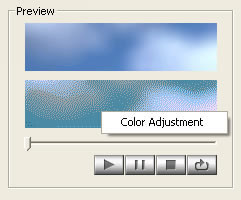 After capturing an AVI file, right click on the preview display to display the Color Adjustment menu. When you select this menu, the screen below displays and you can adjust the colors of the movie. In Color Adjustment, you can make all of the colors more red or more blue. 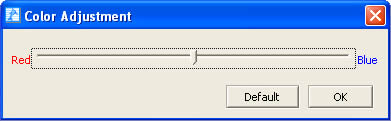 Capturing movies in formats other than AVIOEL Screensaver Studio is only compatible with AVI format. When you wish to capture a movie in another format, use commercial movie editing software or freeware to convert the file into an AVI format file. You will then be able to capture the file for OEL Screensaver Studio. |