
Picture to Movie Operating stepsThe following is an explanation of the operating steps to
make a movie from 1 picture.
1
 2
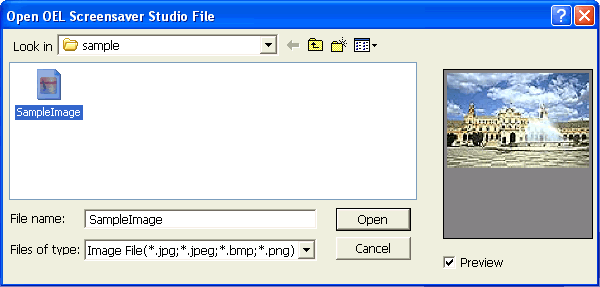 Select the image that would like to capture. 3
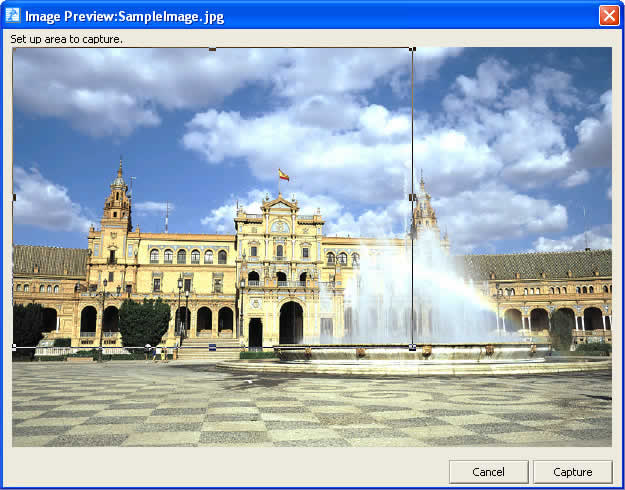 When you have selected the image, this preview screen appears. Partition the area you would like to use with frames in this screen. When you click inside and drag these frames you can move them. Additionally, when you click on one of the four corners or near the center, you can enlarge or shrink the frame. When you drag the frames while pressing Shift, all of the frame sides will enlarge or shrink equally. A preview of the cut out is generated at the lower left of the screen. Refer to this preview while adjusting the frame position and size. Place a frame around the area you would like to cut out and click the Capture button. 4
When you click the Capture button, the image file that you have just
selected will be cut out and then displayed on the left of the screen. 5
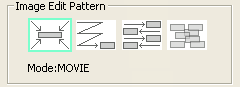 When you are finished capturing the image, select the cutting pattern for the image. Displayed as the icon is the design of the cutting pattern and displayed below that is the movie type (Movie or BGV) to be created. Pick the pattern that you find most pleasing and click Make a Movie. 6
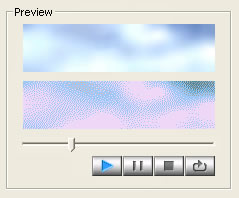 When you click Make a Movie, the image is cut following the pattern you have select and the cut outs are joined to form a movie. The movie you have created is displayed in the preview. The Slide Show that uses the colors of the original images is displayed on the top, the image that will display in the car audio is displayed on the bottom. Play the movie you have created to confirm that there are no problems. When you wish to do the settings over again, repeat the settings that you have done up to this point. When all the procedures are finished and the movie is complete, click Save. 7
 The file that you have saved is an LKD file and is a unique file format to OEL Screensaver Studio. You cannot use this file in any other application. The LKD file is a movie or picture file that displays on the car audio. When actually sending files to your car audio, you must organize and convert the files you want to send into the LKA file format. Read below for more information on LKA files. 8
When you save the LKD file, the LKA file creation screen is displayed and the message Saved is displayed. Click OK and the message Continue? displays. When you click Yes the Picture to Movie creation screen appears. Click No to display the LKA creation screen. |