
Text Art Operating stepsExplained below are the operating steps for making Text Art.
1
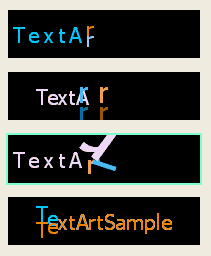 The four patterns lined up on the left side of the screen are text art patterns. Select the pattern you would like to use. 2
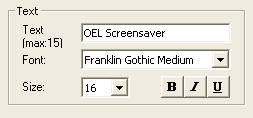 When you have selected a pattern, input the text of the pattern you would like to display with the text settings on the top right of the screen. Aside from being able to select font and size for text, you can also set bold, italics and underline for the text. 3
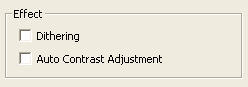 In Effect, you can set options when you make a movie. Dithering refers to the method used when expressing the many color tones of a few colors and has a compensating effect for similar colors. In Auto Contrast Adjustment you can adjust the contrast of an image. This is effective when an image is too bright or too dark. 4
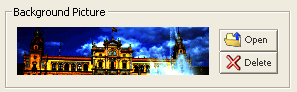 You can select an image to appear in the background of text art. Click on Open in Background Picture at the bottom left of the screen to capture an image. You can also create text art without specifying a background image. You can delete captured images by pressing Delete. 5
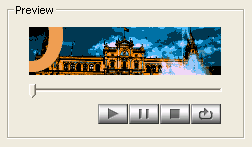 When all settings are finished you can click on Text Art. This creates text art. The movie you have created is displayed in the preview. The movie is displayed in the car audio. Play the movie you have created to confirm that there are no problems. When you wish to do the settings over again, repeat the settings that you have done up to this point. When all the procedures are finished and Text Art is complete, click Save. 6
 The file that you have saved is an LKD file and is a unique file format to OEL Screensaver Studio. You cannot use this file in any other application. The LKD file is a movie or picture file that displays on the car audio. When actually sending files to your car audio, you must organize and convert the files you want to send into the LKA file format. Read below for more information on LKA files. 7
When you save the LKD file, the LKA file creation screen is displayed and the message Saved is displayed. Click OK and the message Continue? displays. When you click Yes the Text Art creation screen appears. Click No to display the LKA creation screen. |