
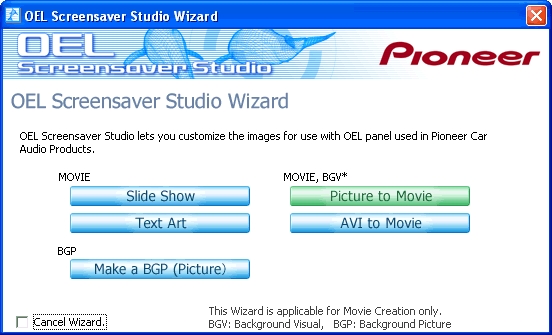
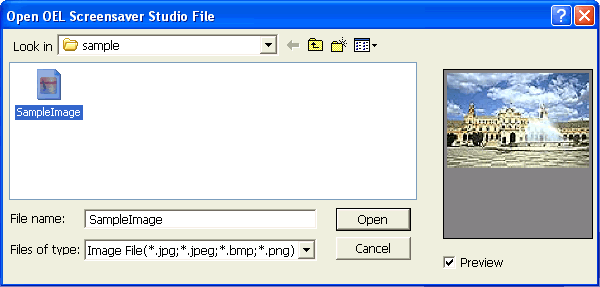
Wizard Picture to MovieIn Picture to Movie you can cut out a picture in a set pattern
to create a movie.
1
 2
 3
 4
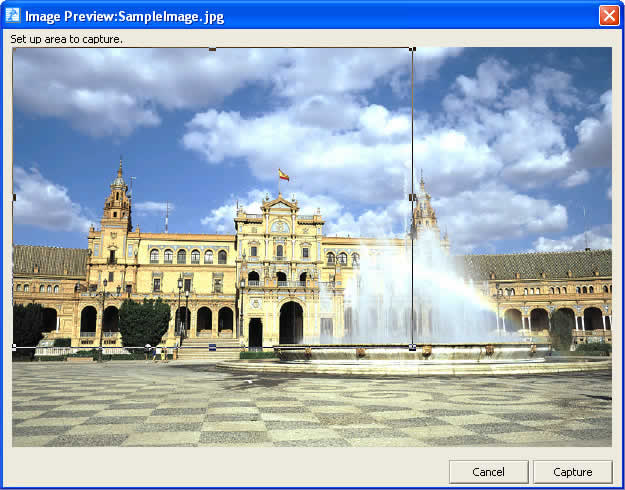 When you select a picture a preview screen like this appears. Partition the area you would like to use with frames in this screen. When you click inside and drag these frames you can move them. Additionally, when you click on one of the four corners or near the center, you can enlarge or shrink the frame. When you drag the frames while pressing Shift, all of the frame sides will enlarge or shrink equally. Surround the area you wish to cut out with frames, and click the Capture button. 5
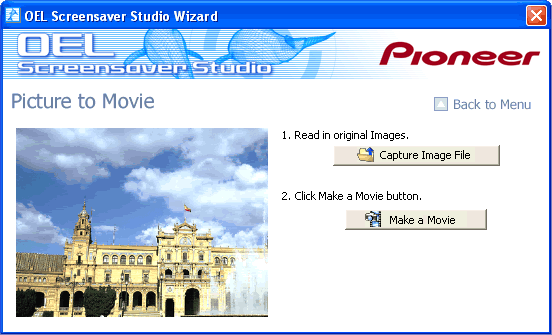 Once you have clicked the Capture button, the wizard screen appears and the image that is cut out with the specified frames displays on the left side of the screen. When you click Make a Movie, you can cut pictures in a set pattern to automatically make a movie. 6
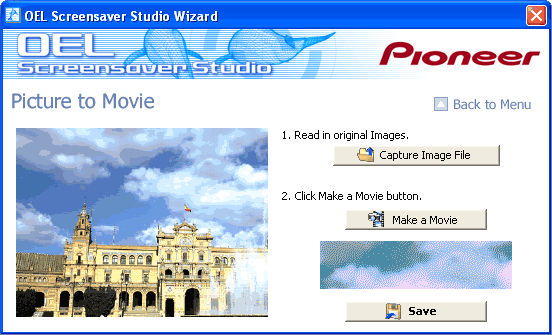 When you click Make a Movie, the movie you have made is displayed. Confirm the movie you made and if you wish to recapture the picture, return to step two and click Capture Image File. This completes the movie creation process. Click on Save. 7
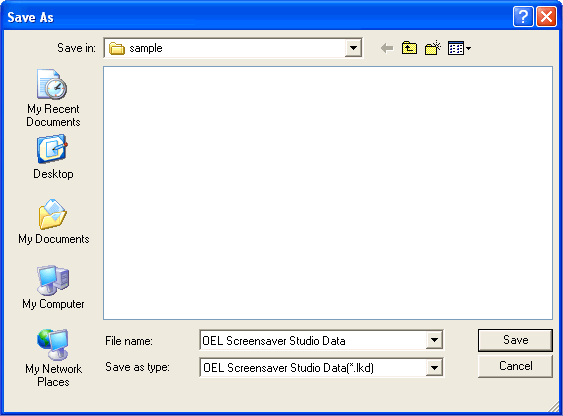 Save the movie you have just created. Save it with an easy to understand name. 8
 The file that you have saved is an LKD file and is a unique file format to OEL Screensaver Studio. You cannot use this file in any other application. The LKD file is a movie or picture file that displays on the car audio. When actually sending files to your car audio, you must organize and convert the files you want to send into the LKA file format. Read below for more information on LKA files. 9
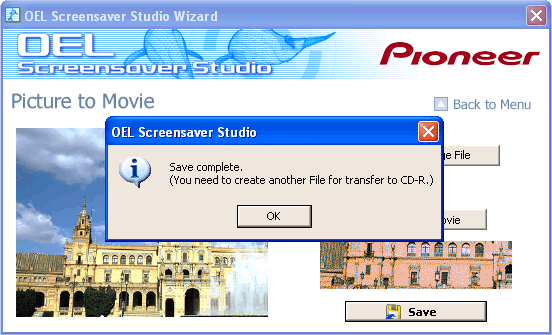 After you have saved the LKD file, the message Continue? Displays on the wizard screen. When you wish to use the wizard again to make a movie or for another function, click on Yes. When you have finished editing with the wizard and you will use another function to edit or create an LKA file, click on No. 10
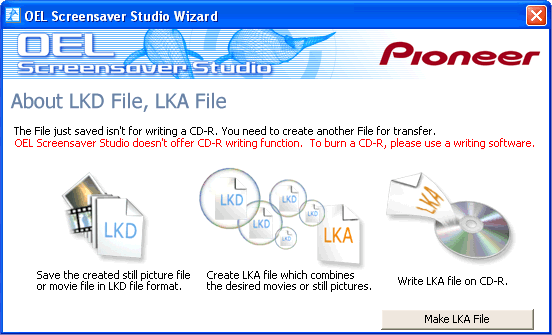 When you click on No and you finish editing in the wizard, an explanation of the LKD file and LKA file appears. An LKD file is a file format for use in OEL Screensaver Studio and an LKA file is used to organize LKD files when sending them to your car audio. When you actually send LKA files to your car audio you must write them to a CD. OEL Screensaver Studio does not contain a CD writing function. Use commercial CD writing software. |