
AVI to Movie Operating stepsExplained below are the operating steps for making AVI
to Movie.
1
 Click on AVI to Movie and select the AVI file that you wish to capture. Select the AVI file that you wish to capture. That AVI file is displayed in the preview on the right side. If the file is in a format that is not compatible with OEL Screensaver Studio despite being an AVI file, no preview will be generated. Even if you select that file, the message The specified AVI file is not in a compatible format. displays and you will not be able to capture that file. 2
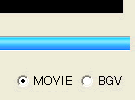 Selected AVI file appears on the right side. Select the image type you want, Movie or BGV, first. (You can change the choice later, too.) 3
 Next, select the area you wish to capture. Drag the blue Slider (capture area indicator) and fix the area you want. You can capture up to 150 frames for Movie, and up to 50 frames for BGV. When total length of your AVI file is shorter, the entire file will be the capture area. 4
 Next, select the capture size from your AVI file. Frame for partition is displayed at the AVI file on the left. Use this frame to cut out the size you want. When you drag the frames while pressing Shift, all of the frame sides will enlarge or shrink equally. 5
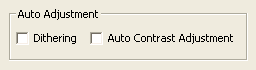 When capture area and size are fixed, you go on to picture adjustments. Dithering refers to the method used when expressing the many color tones of a few colors and has a compensating effect for similar colors. In Auto Contrast Adjustment you can adjust the contrast of an image. This is effective when an image is too bright or too dark. 6
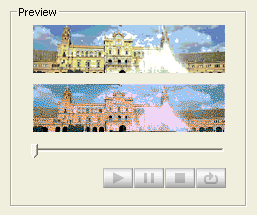 Click Capture a Movie when all settings are complete. Now you are through with AVI to Movie process. The movie you have created is displayed in the preview. The text art that uses the colors of the original images is displayed on the top, the image that will display in the car audio is displayed on the bottom. Play the movie you have created to confirm that there are no problems. When you wish to do the settings over again, repeat the settings that you have done up to this point. When all the procedures are finished and Text Art is complete, click Save. 7
 The file that you have saved is an LKD file and is a unique file format to OEL Screensaver Studio. You cannot use this file in any other application. The LKD file is a movie or picture file that displays on the car audio. When actually sending files to your car audio, you must organize and convert the files you want to send into the LKA file format. Read below for more information on LKA files. 8
When LKD files are saved, the message Save Complete appears on the LKA file creation screen. If you click OK, the message Continue Movie Edition? appears. When you click Yes the AVI to Movie creation screen appears. Click No to display the LKA creation screen. |